
As promised, I am going to go through the steps I followed bringing this blog from a single WordPress installation into a WPMu environment. For some background on all of this check out these posts here and here.
So, I mentioned previously here just how unhappy I have been with the WordPress import and export functions. Not only is the importer inconsistent, but it also creates quirky XML that isn’t as clean as it should be and imports only some of your precious data, while leaving out the blogroll, plugin tables, and a variety of other necessities germane to an export/import tool. These issues led me to experiment with importing the actual database tables of an existing single-installation of WordPress into a WPMu database. It wasn’t all that hard, but there might be a few things to keep in mind as you give it a shot.
But before we get started there is one disclaimer: If you don’t back up all your databases and core files for both your single WP and WPMu installs before trying anything like this, then you’re a crack baby!
Let us go, now…
Step 1: Export Your Single WP Installation Database
First thing you need to do is go into your CPanel and look for the phpMyAdmin interface on your server (this is my GUI of choice because I am line-command impaired) and export a copy of your WP single installation database. This is pretty straight-forward, just find the database for your blog, if you have several WP blogs set up and don’t know which is which, then browse the wp-options table and you should see the blog title listed in this table (see example here).
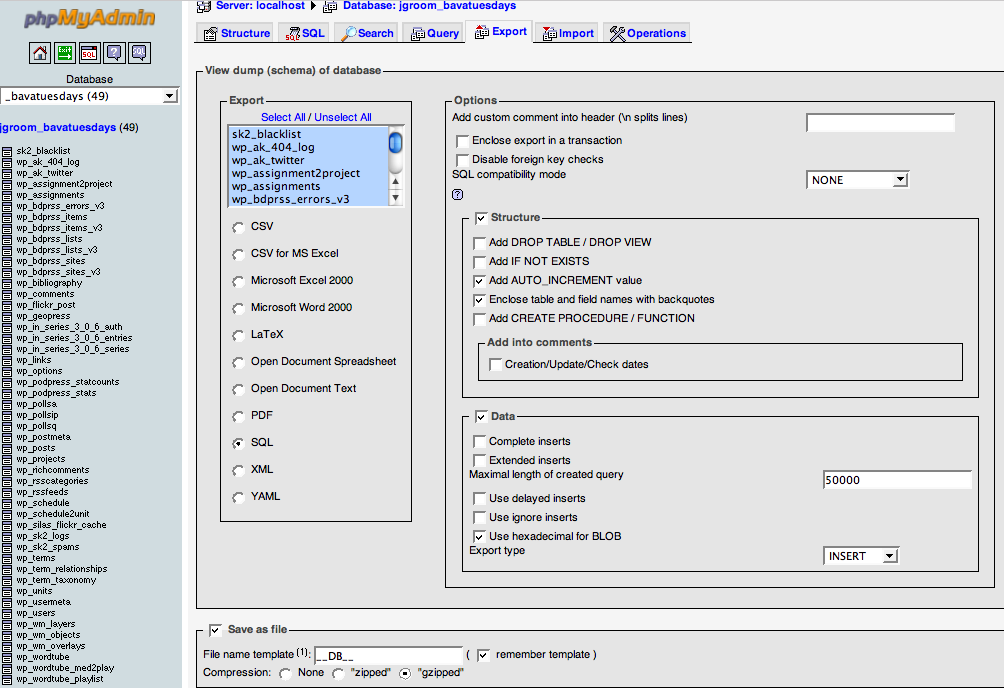 Click on image for larger version.
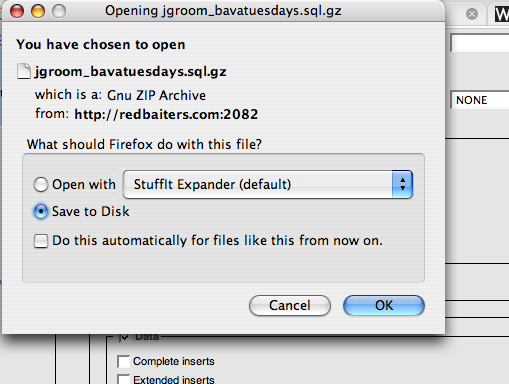
Also, be sure to save the file you your disk so we can open it up and start changing a few things.
Step 2: Open Up the Exported SQL file in a Text Editor
Open up the SQL file you downloaded in a text editor of some kind. Keep in mind that if you choose the .gz format (a compression algorithm which is quite useful for large SQL files) you will have to double-click on the file to de-compress it before you start editing. If you use a Mac I recommend TextMate ($) or Text Wrangler (Free), and while the editing we will be doing to the .SQL file is very basic, the searching, finding, replacing of text and general formatting options will be easier with a good editor. As for PC based text editors, I’m not so sure, some good recommendations anyone?
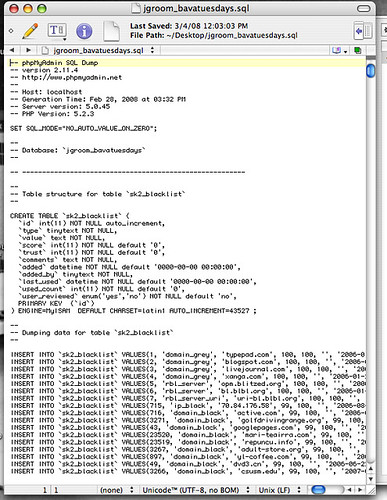
Click on image above for larger version.
Step 3: Explanation of WPMu database table structure
The WPMu Tutorials site has two posts about the basic structure of the WPMu database. It is a useful overview that explains how the deafult blog in a WPMu database has the table prefix wp_1_ as logic would have it the next blog you create on a WPMu installation will be wp_2_ etc. This is a different from a single WP installation in that the single installation only has the wp_ prefix without the numbers (which connote a blog id in WPMu). For example, whne importing my single installation in WPMu, I already had several blogs within that environment, so when I mapped the new domain for bavatuesdays, the database table structure was already up to 30:
wp_options is the table name on WPMu vs. the wp_options that is in my single installation. So, in short, just about every database table you have in a single WordPress installation (which will not include plugin databases only you have already set them up on the new WPMu blog you are importing to) will have a corresponding table in WPMu with an appropriately number table prefix, in my case wp_
Step 4: Editing the SQL database file
Before we go in and change the table names, one thing you might consider is cleaning out some on the kipple in your database. For me, this amounts to getting rid of all the spam caught by Spam Karma 2, and deleting the <code>sk_2_blacklist</code>, <code>wp_sk2_logs</code>, and anything else that takes up a lot of unnecessarily table space. For example, the 404 error log I run on my site (which is a plugin as is SpamKarma 2 and if they are not installed on your site they will not see these tables, and chances are your database will be far cleaner and lighter than mine is).
As for deleting database tables from an SQL text file, it is pretty simple because SQL files a very specific format that you can easily follow in a text document, here is an example:
-- --------------------------------------------------------
—
— Table structure for table `wp_wm_layers`
—
CREATE TABLE `wp_wm_layers` (
`id` mediumint(9) NOT NULL auto_increment,
`layer_title` tinytext NOT NULL,
`layer_name` tinytext NOT NULL,
`layer_type` tinytext NOT NULL,
`layer_url` mediumtext NOT NULL,
`layer_params` mediumtext NOT NULL,
`layer_bounds` mediumtext NOT NULL,
`layer_options` mediumtext NOT NULL,
`layer_size` mediumtext NOT NULL,
`layer_unavailable` tinyint(1) NOT NULL default ‘1’,
`layer_hide` tinyint(1) NOT NULL default ‘1’,
`rss_cachetime` mediumint(9) NOT NULL default ‘0’,
`layer_author` bigint(20) NOT NULL default ‘0’,
UNIQUE KEY `id` (`id`)
) ENGINE=MyISAM DEFAULT CHARSET=latin1 AUTO_INCREMENT=1 ;
—
— Dumping data for table `wp_wm_layers`
—
— ——————————————————–
—
— Table structure for table `wp_wm_objects`
—
CREATE TABLE `wp_wm_objects` (
`id` mediumint(9) NOT NULL auto_increment,
`object_name` tinytext NOT NULL,
`layer_name` tinytext NOT NULL,
`object_type` tinytext NOT NULL,
`object_bounds` tinytext NOT NULL,
`object_color` tinytext NOT NULL,
`object_width` tinytext NOT NULL,
`object_hide` tinyint(1) NOT NULL default ‘1’,
`object_author` bigint(20) NOT NULL default ‘0’,
UNIQUE KEY `id` (`id`)
) ENGINE=MyISAM DEFAULT CHARSET=latin1 AUTO_INCREMENT=1 ;
—
— Dumping data for table `wp_wm_objects`
—
— ——————————————————–
As you can see from the two example of seaparate database tables above, SQL has a very regular logic to how it separates tables with hasmarks, and creates new tables, and populates the relevant information. So, having no knowledge of SQL, which is my current state, i just got rid of the tables that were extraneous (like Spam Karma and the 404 Error log) and renamed all of the wp_ prefixes to wp_ etc. for examples, the two tables above would no longer be `wp_wm_layers` and `wp_wm_objects`, but rather `wp_wm_layers` and `wp_wm_objects`. I didn;t have to edit any of the actual SQL code, but just rename the tables that are being created to match the blog id on WPMu. Does this make any sense?
Step 5: A quick find and replace all for table names
So, the quick and easy way to do this replacement is to use the text editor to find `wp_ and replace all instances with `wp_
This should do the trick, but this is also why it is very important to do a database backup of both installations just in case something goes wrong. Also, if anyone out there who knows more about SQL than me, and there are millions of you, pleeeeeeease peer review this post 🙂
Save the SQL file and now we move to deleting the existing tables for this blog in WPMu and importing the ones from the modified SQL file we have been working on.
Step 6: Deleting existing tables
The sixth step may seem counter-intuitive (and there may be a better way), but in my limited experience I found I had to go into the WPMu database and delete all the tables for the blog I created and want to import the single-install database to. For example, the new blog on WPMu for bavatuesdays has the database prefix wp_30 (your may very well be different depending on how many blogs you have created and what the corresponding number is). So, I go into my WPMu database, find all the tables that have the prefix wp_30 and drop them (scary I know, but trust me, I’m an amateur).
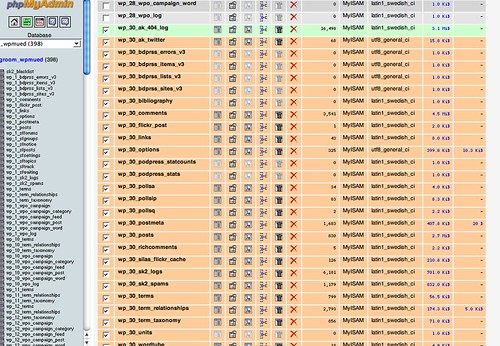
Please note: You will need to dump all of the tables associated with the blog you want to import. Try not to be confused by my example here because I have already done this and some tables are related to plugins. for a list of the tables you should be deleting with only the wp_# prefix, for example:
wp_#_categories
wp_#_comments
wp_#_link2cat
wp_#_links
wp_#_options
wp_#_post2cat
wp_#_postmeta
wp_#_posts
wp_#_terms
wp_#_term_relationships
wp_#_term_taxonomy
Where the # is the number of the blog you have created to which you will be importing the SQL file. Am I being clear here?
As another note, wp_#_terms, wp_#_term_relationships, wp_#_term_taxonomy are all specific to WP version 2.3, so be sure your blog is updated to the lastest version before you try this!
Step 7: Importing the new SQL blog database
Once you have dropped all the relevant tables, you will then go to the import tab in phpMyAdmin and upload the modified SQL file we have been working through. This should be relatively painless, return to the root of the wpmu database, make sure you are not within a specific table, and then click on the import button, find the saved SQL file we have been modifying and import it.
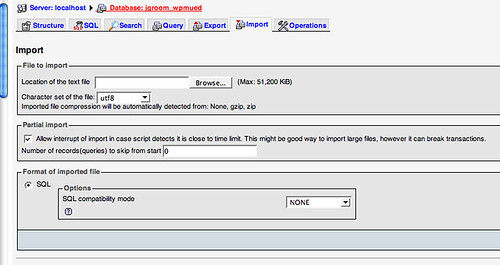
And that should be it, but let me say two things before I end this post:
a) I’m a hack and this worked for me, but may prove unsuccessful for you, so if you try it please backup your stuff
b) I hope far smarter than me who have done this before and know the intricacies better will chime in and correct any flagrant errors or misleading passages that could mislead or somehow screw someone’s attempts up.
With that said, go to it and let me knwo if you have an issues that I can try and help out with.

Pingback: MU: Can learn to love "The Merge" - WordPress Tavern Forum
I´m not sure I quite understand step 5. What number do I use if my wpmu database is up to 7?
CREATE TABLE `wp_7_term_taxonomy` (
`term_taxonomy_id` bigint(20) unsigned NOT NULL AUTO_INCREMENT,
`term_id` bigint(20) unsigned NOT NULL DEFAULT ‘0’,
`taxonomy` varchar(32) NOT NULL DEFAULT ”,
`description` longtext NOT NULL,
`parent` bigint(20) unsigned NOT NULL DEFAULT ‘0’,
`count` bigint(20) NOT NULL DEFAULT ‘0’,
PRIMARY KEY (`term_taxonomy_id`),
UNIQUE KEY `term_id_taxonomy` (`term_id`,`taxonomy`),
KEY `taxonomy` (`taxonomy`)
) ENGINE=MyISAM DEFAULT CHARSET=utf8 AUTO_INCREMENT=103 ;
INSERT INTO `wp_7_term_taxonomy` VALUES(1, 3, ‘category’, ‘Default category. This will automatically be added to any post.’, 0, 12);
…
..
.
Marja,
If you are importing a single WP into a WPMu install, then the wp_7_* would reflect that number of the new blog you created for the blog on WPMu you are importing the old database into.
Does this make sense? Is the number in your newly created blog you are importing the database into 7?
Let me know,
Jim
Dear Jim,
I think I understand what you mean now.
The blognumber(ID) is indeed 7, and wp_7_options shows the correct blog details.
Thanks!
I made a backup ( of live & local databases) so I´m going to give it a try ;o)
just to let you know, it´s all working!
Thanks so much for this article.
My pleasure, Marja, glad to hear it is working. Have fun!
Jim
Pingback: drmike on "Moving from SU to MU (or multi-site in 3.0)" « Test Blog
Great! Tnx a lot for the tutorial! 😀
The best text editor for Windows is Notepad++, it does everything we need here with ease.
I also suggest you to make it more clear that you created a brand new site in your network, it had assigned a site ID, then you deleted its tables and imported your legacy site over them. Some ppl may get confused on where are those tables you mentioned and not understand they are from a new site, or even overwrite an existing site in the network with your legacy site tables.
But, what about wp-users and wp-usermeta? I heard users are shared among sites in the network and these tables are discarded from legacy tables, how did you handle it?
Ans what about taxonomy/terms tables? Are they shared too?
During the export, if you select the “Drop Table” checkbox, then you will not need to delete the tables manually before import. SQL will insert a line for each table to drop it first before creating the new table and inserting the data.
For example:
“–
— Table structure for table `wp_comments`
—
DROP TABLE IF EXISTS `wp_comments`;
CREATE TABLE IF NOT EXISTS `wp_comments` (“
Does this work on an wpmu or wp 3.0install?
I mean these tables already exist with data from existing blogs don´t they?
Hi, very good guide. I am a massive fan of one’s weblog. I have been wanting to get ahold of you to determine if perhaps we are able to focus on some suggestions about report via an e-mail chat. In the event you can, great. If not, no worries.
I also needed to do some search+replace in the database (or in the dump) due to the different upload-folder structure:
UPDATE wp_posts SET post_content = REPLACE(post_content, 'wp-content/uploads', 'files'),

guid = REPLACE(guid, 'wp-content/uploads', 'files');

UPDATE wp_postmeta SET meta_value = REPLACE(meta_value, 'wp-content/uploads', 'files');
and the copy the old blog’s uploads to the new one:
cp -r /path/to/old/blog/wp-content/uploads/* /path/to/new/blog/wp-content/uploads/
Pingback: Database structure | Bathala Govardhan Reddy
As a side-note to Chris’ very helpful SQL commands, if you’re converting from a blog in a sub-directory you’ll need to include that in the string replace too:
I followed these instructions to the T – i.e carefully.
I changed the _WP files to _WP2
Deleted _WP2 in my new database created on PHPmy admin (using Local host by the way)
I imported the old data base of the exisiting blog I wanted to import into my newly created network and empty site
The result is the new network WP installation that I’d created has been replaced (?)/overridden by the old blog/WP insallation – so much so that I now have my old single site backend/dashboard – including old user name (instead of old one) etc.
But still cannot see old blog when try to view it from dashboard – I’m guessing because I’ve changed the virtual host server names in order to get the network going…
In addition – no sign of any WP2_ files in the database… I perhaps rashly imported it several times as a result, but still no sign
One additional piece of information – I have imported these files into a new database once already – using the original database name – this before I read this blog – but I’m assuming that that database will just be sitting idle.. ??
If anyone has any ideas about how to unravel this situation, I would be most greatful.
Thank you.
In addition to the reply/question above – no extra tables appeared in my database after importing, several times! But the import was apparently succesful according to phpmydmin message.
Now I’ve realised that my old blog is being read as a sub-domain/sub-directory as it has the WP_2 as the pre-fix – which I think tells WP that there is a network – so there is not an option to Edit settings in dashboard…
Am keenly (!) trying to get to the bottom of this – in my HTDocs file now there is an empty folder titled ‘2’ in blog.dir . As far as I can see the httpd. conf file is correctly configured, as is the WPconfig and .htaccess…
I hope I can get to the bottom of this – I think my only option may be to uninstall the database, again, and re-install the original DB , removing the pre-fix WP2 and then install another network on the original blog..
If anyone gets my drift! Or if anyone has any other ideas as to how to remedy this I’d be grateful. Thanks.
You should have a wp_1 and wp_2 if you are doing a mulitsite configuration. Do you have several blogs in this multisite? What are the wp_#s. The thing about WPMu (or MultiSite) is that it has separate table for each new blog—and you need to import your new blog into the proper field. What was the number of the original blog you are replacing on your WPMS? Is it the main blog wp_1?
Let me know.
Thanks for your reply. I have uninstalled it and started from scratch – I give up on networks for now! Think I’ve been trying to unravel it for approximately 2 weeeeeeks!!!! Too long. So, back to single blogs.
For the record – there was a WP_ and WP2_ in my multi-site table, and I was trying to import an existing single blog – that worked but as said above it seemed to override/lose the network blog/primary site. BUT it was clearly a part of a network because it has a My Sites tab at top of dashboard – on which there was just that site though….. ??? I tried and tried to unravel it, checked everything – but have given up. Also – when I had the single blog there, I could see the dashboard but not the blog – kept getting error messages 404 or whatever.
Then I re-installed Mamp and imported the existing single blog to the new ‘virgin’ table – this time I got an error message saying ‘You do not have sufficient permissions to access this page” when I tried to get into the log-in page.
So something’s gone amisss that’s way over my head….
So I’m completely starting from scratch. Can you advise, do you know – how do I run two single blogs on a local host? Do I have to install Mamp 2 x or just have two tables on Mamp….?
Many thanks again.
Thanks. I followed your instructions and they worked. The only problem I had was with my own skillset but I learned a lot from you!
Pingback: Now We're Full Automatic. - Lords of Chaos
Pingback: How to migrate WordPress Blogs into Multisite without using the GUI-Import/Export Feature – Read For Learn